Bifrost Operator Console: Step-by-Step Guide to Heimdall
Heimdall is the operator console of Bifrost. It runs in a terminal on the controller host and shows the whole Classic migration of a cluster as one chain of phases: what has run, what is running now, what comes next, and the exact command behind every action. Phases are started, followed, stopped, and resumed from the console, and every phase runs through the same Bifrost commands as on the command line.
A phase started from the console runs in the background. Closing the console does not stop it: when the console is opened again, the running phase is shown with its live log. The console and the bifrost classic estate command line share the same records and locks, so each sees the runs the other started.
This guide walks through a migration in the order an operator meets the screens. The screenshots show a simulated workspace with two clusters, prod01 (in the middle of its preparation) and prod02 (with a failed plan validation).
Before You Start
- Bundle. The console ships with the Classic bundle (
classic-full)../install.shinstalls it together with the rest of Bifrost; nothing else is needed. - Terminal. A terminal of at least 80 columns and 24 rows with a UTF-8 locale. From 148 columns and 40 rows, the console adds a detail panel next to the phase chain. Colours are a second channel: every state is also written as text, and the console works with
NO_COLORand a monochrome theme. - Mouse. The console uses the mouse. Select text with Shift and drag, and paste with Shift+Insert.
Start the console from the bundle directory:
./heimdall
# the same as
./bifrost.sh console
The console reads one values file per cluster, called an estate. It looks for values-<name>.yml files in the current directory (or the directory given as an argument) and in ~/.bifrost/estate/. --values <name> opens one estate directly, and --demo opens a generated example workspace without a cluster.
Step 1: Open an Estate
With no estate in the directory, the console opens the new-estate dialog. With one estate, it opens that estate. With several, it shows a picker; each row names the estate, where its values file was found, and its path.
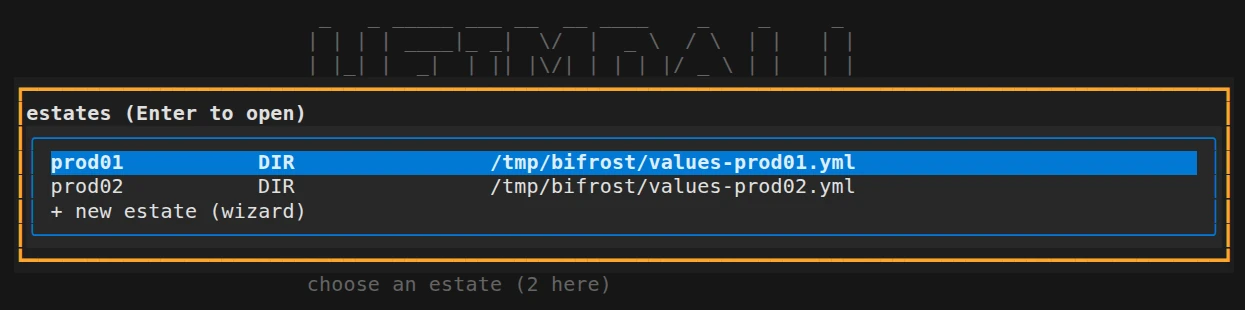 The estate picker. Press Enter to open an estate, or choose "+ new estate" to create one.
Presser e at any time to switch to another estate.
Step 2: Create a New Estate
An estate can be created in two ways.
From the Cloudera Manager URL. Choose "+ new estate" in the picker and enter the Cloudera Manager URL:
- The console reads the certificate chain of Cloudera Manager and shows each certificate. Type
TRUSTto keep the root certificate, or give the path of a CA file. - Enter the Cloudera Manager user. The password is asked once in a masked field and sent once; a refused account is not tried again.
- Choose the cluster when Cloudera Manager manages several, then the package bundle locations and the Ambari admin password (Enter lets Bifrost generate it).
- Review the collected values, then press
Ctrl+S. The console writesvalues-<name>.ymlwith mode 0600 and never overwrites an existing file. - The console then generates the vault key and shows it once, stores the Cloudera Manager password, asks for the database passwords, and runs the readiness check.
Field by field. Presser w (ou Ctrl+F in the dialog above) to open the wizard. It walks through 25 fields in five groups: required settings, secrets, modes, phase settings, and decisions. Each answer is checked as it is entered, for example whether the Cloudera Manager URL answers and whether a path exists, and the YAML preview shows the file being built.
 The field-by-field wizard. Enter moves to the next field, Shift+Tab goes back, and Ctrl+S saves the values file.
Secrets are never typed into the values file. A secret field accepts only a reference: env:VARIABLE, file:pathou prompt (asked when a phase needs it), and generate for the Ambari admin password.
Step 3: Review Values and Secrets
Presser v to open the values of the estate. Every key is listed with its value and, after c, with the result of its check. Keys the operator set are shown in bold, defaults are dimmed, and a description of the selected key appears below the table.
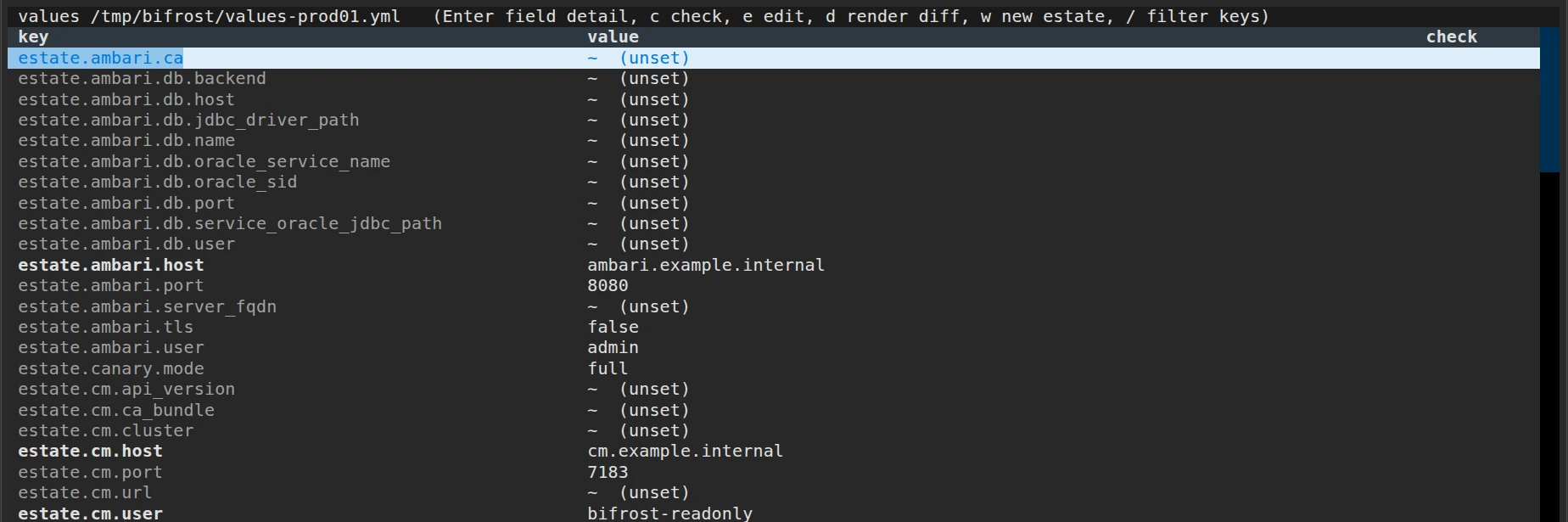 The values screen. Press e to edit one field, E to edit the whole file, and c to check the values.
An edit is written only when the values still load, and comments in the file are kept. A change made to the file outside the console is picked up within two seconds, and every action reads the file again before it starts.
Presser K to manage the vault key of the estate. The key encrypts the passwords that the console stores for this estate.
 The vault key dialog. Press g to generate a key, A to adopt an existing one, and R to rotate it.
- A generated key is shown once. Copy it to a safe place before closing the dialog.
- Passwords are asked in a masked dialog when a phase needs them. Each password is checked against its service before it is stored, and it is stored encrypted under
~/.bifrost/estate/. A password never appears on a command line. - A copy of the key is kept in
~/vault-keepbefore every run with--execute.
Step 4: Check Readiness and Render the Inventory
Presser c to run the readiness check of the estate. Each line is OK, PENDING (waits for an earlier phase or a decision), WARNINGou REFUSED. A refused line is followed by the fix and the key that applies it.
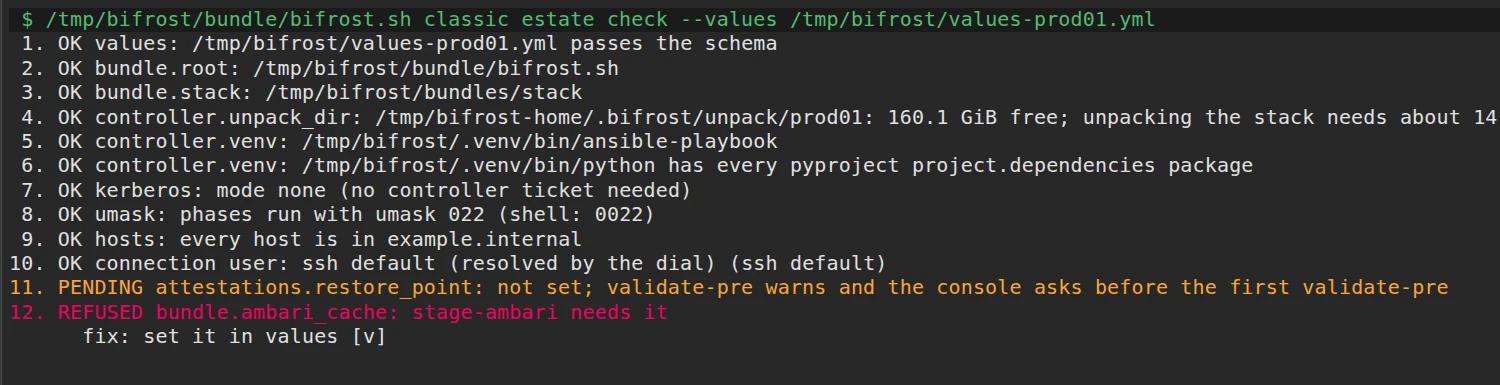 The readiness check. "fix: set it in values [v]" means that the v key opens the values screen where the setting is made.
Presser d to see how the values change the inventory. The console shows the difference; press w and confirm with y to write the inventory files. The console refuses the write when the values changed after the difference was computed.
Step 5: Read the Phase Chain
The main screen shows the phases of the Classic migration in their order, from discover À validate-post. Above and below the chain, rows marked as not run from the console (such as rollback and finalize) show their command lines.
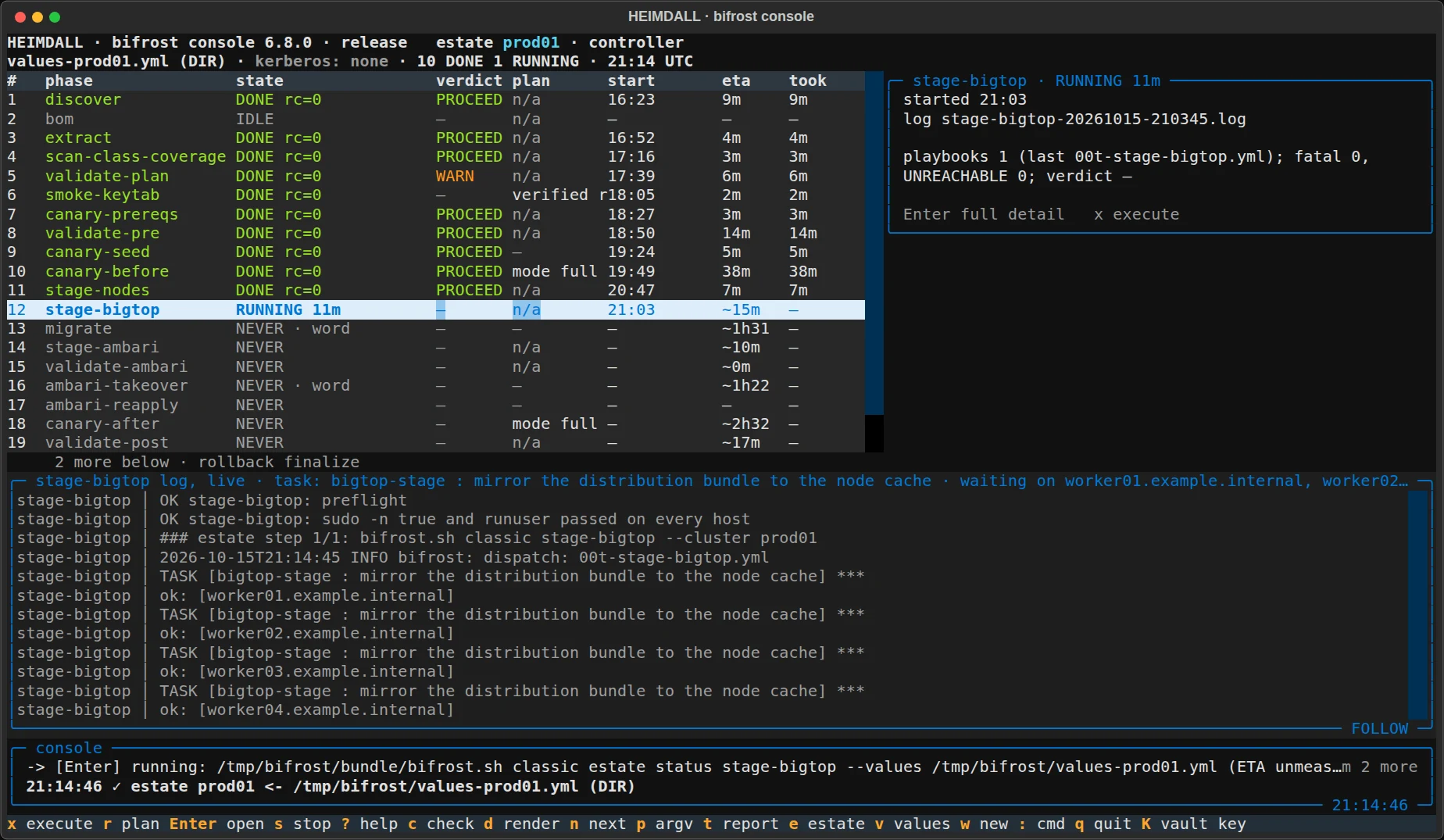 The phase chain during staging. The selected phase is described in the panel on the right, and the log of the running phase is followed at the bottom.
| Colonne | Meaning |
|---|---|
| état | The state of the phase (see below), with progress while it runs. |
| verdict | The verdict of the last run: PROCEED, WARNou ABORT. |
| plan | The last plan-only run, n/a for phases without a plan mode, or the canary mode on the canary capture rows. |
| start | When the last run started. |
| eta | The expected duration. A value with ~ is an estimate; the console records measured durations for later runs. |
| took | How long the last run took (on wide terminals). |
| State | Meaning |
|---|---|
DONE rc=0 | The last run ended successfully. |
RUNNING | The phase is running, with the minutes since it started. |
FAILED rc=N | The last run ended with an error. |
STOPPED | The operator stopped the last run. |
PLANNED | The last run was a plan-only run. |
NEVER | The phase has not run yet. The first phase that is not done is marked as next. |
IDLE | The phase has nothing to run for this estate, and the reason is shown. |
The first phase that is not done can carry a note. · word means that the phase asks for a typed confirmation word. · needs become means that the last preflight did not prove passwordless sudo on the nodes yet. · render stale: press d means that the inventory is older than the values.
Below the chain, the log of the running phase is followed automatically, and the console line shows the last message with the equivalent command line. Press l to change the size of the log, and z to fold the finished phases into one row.
Step 6: Run a Phase
Select a phase with the arrow keys, then:
- press
rto run it in plan-only mode, where the phase has one (for examplemigrateetambari-takeover); - press
xto run it.
Before anything starts, the console shows what will run: the estate command, the Bifrost command it starts, and what --execute means for this phase.
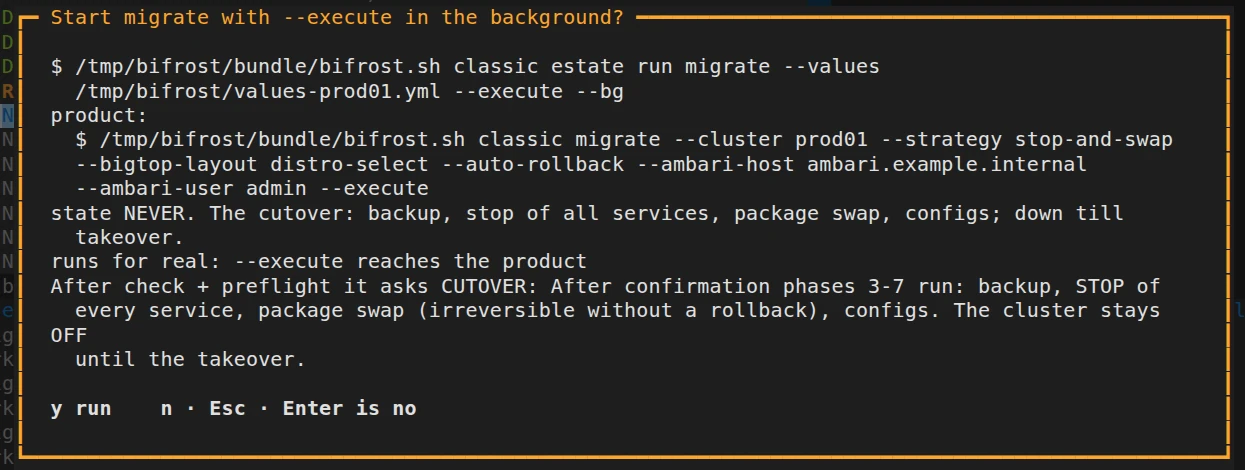 The confirmation of a phase. Only y starts it; any other key, including Enter, cancels.
The readiness check and the preflight of the phase run first, and any password the phase needs is asked. The phase then starts in the background, and its log appears in the chain. When an earlier phase is not done yet, the confirmation says so and asks whether to start anyway.
Cutover and Takeover Confirmation
The two phases that change the cluster most, migrate et ambari-takeover, ask for a typed word after the confirmation: CUTOVER for the cutover and TAKEOVER for the management plane takeover. The dialog states the consequence of the phase. Enter does nothing until the word is complete, the word is case-sensitive, and Esc cancels without starting anything.
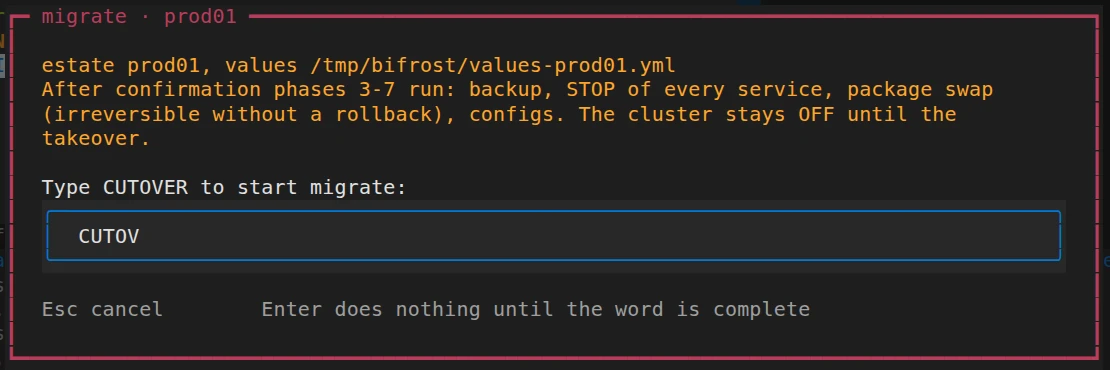 The typed confirmation of the cutover.
Before the first validate-pre, the console also asks the attestations the migration needs, such as the restore point of the NameNode metadata volume and, for HSM-backed key stores, the custody of the keys.
Step 7: Follow a Running Phase
Press Enter on a phase to open its details. For a running phase, the screen shows when it started, its process, its log file, a summary of the playbooks it ran, and the live log.
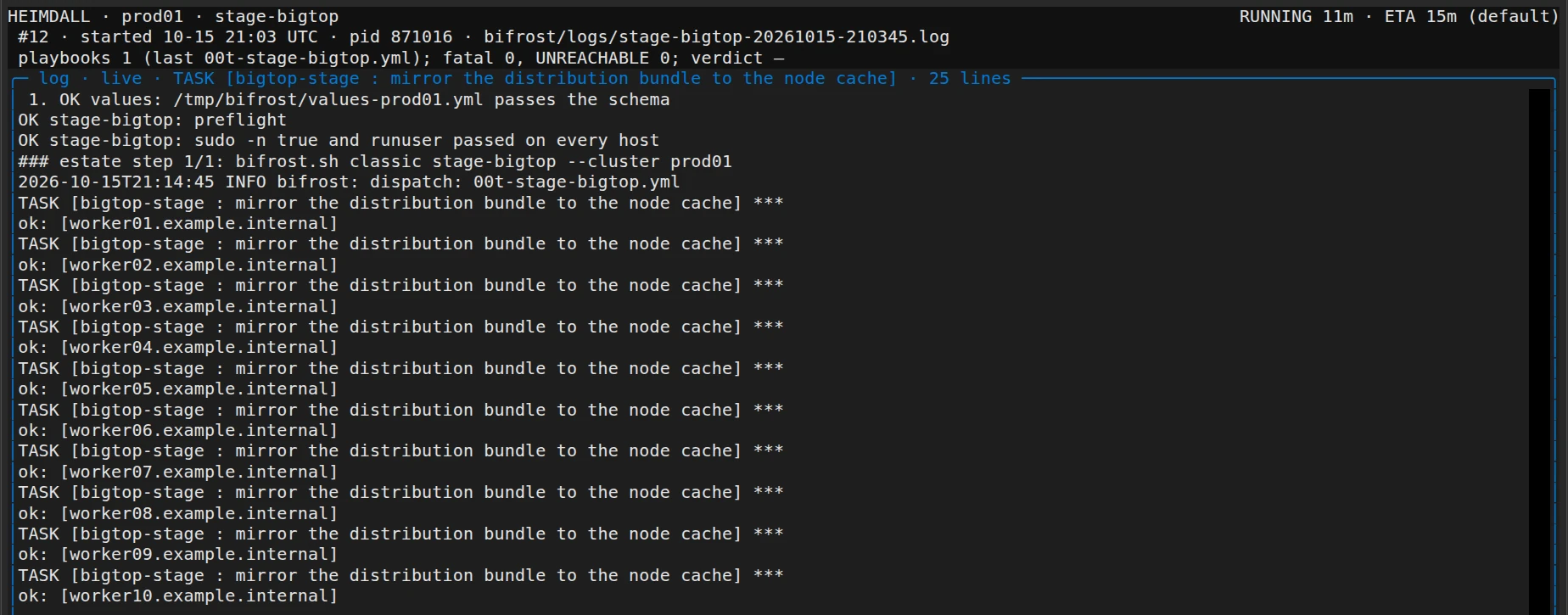 The details of a running phase. The log follows new lines; press o to read the whole log in the pager, / to filter it, and y to copy the command line of the run.
Step 8: Handle a Failed Phase
When a phase fails, its details show the refusals of the run, grouped by who acts on them:
- PRODUCT: Bifrost refuses something that needs a fix in the product or its build.
- ESTATE: the cluster differs from its values; the values or the cluster have to change.
- OPERATOR: an input clears it, such as a waiver, an acknowledgement, or a choice.
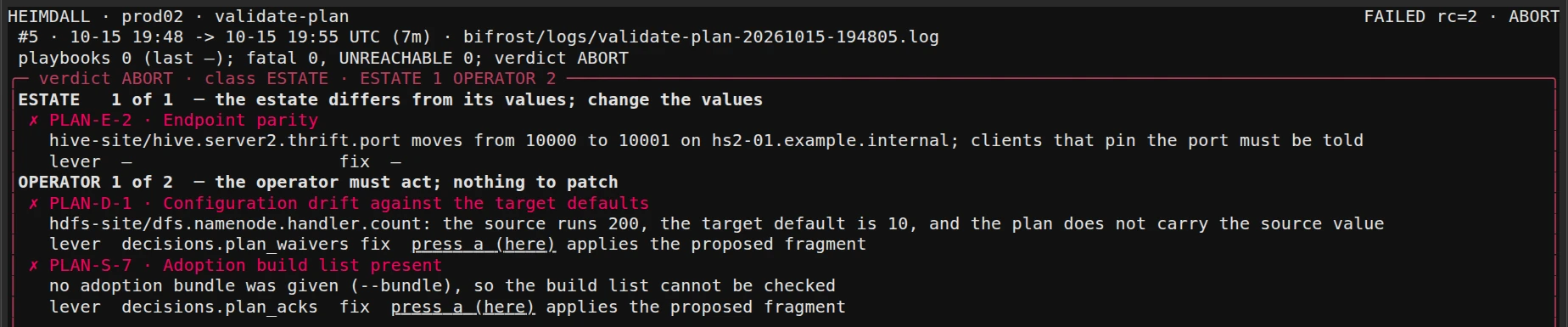 The refusals of a failed plan validation. Each refusal names its lever, and "press a" applies the proposed fix.
- Apply a proposed fix. Presser
un. The console shows the change to the values file; presswto write it. - Retry. After the cause is fixed, press
xon the phase to run it again. - Resume. Pour
migrate,ambari-takeover, and the canary captures, pressRto resume from the failed step instead. The console lists the steps it will skip and asks for the wordRESUME.
Step 9: Stop a Running Phase
Select the running phase and press s. The console shows the signal it will send to the process group of the run.
 Stopping a phase. For migrate and ambari-takeover, the name of the phase must be typed.
The console waits for the run to end and records it as stopped. The signal reaches only processes on the controller; the console lists the hosts where remote work may still run.
Step 10: See What Comes Next and Report
Presser n to see the finished phases with their exit codes and durations, and the next command to run (or the running phase to follow).
 The next step of the migration.
Presser t to open the migration report: one row per phase with its start, exit code, duration, log file, and verdict. E exports the report as text.
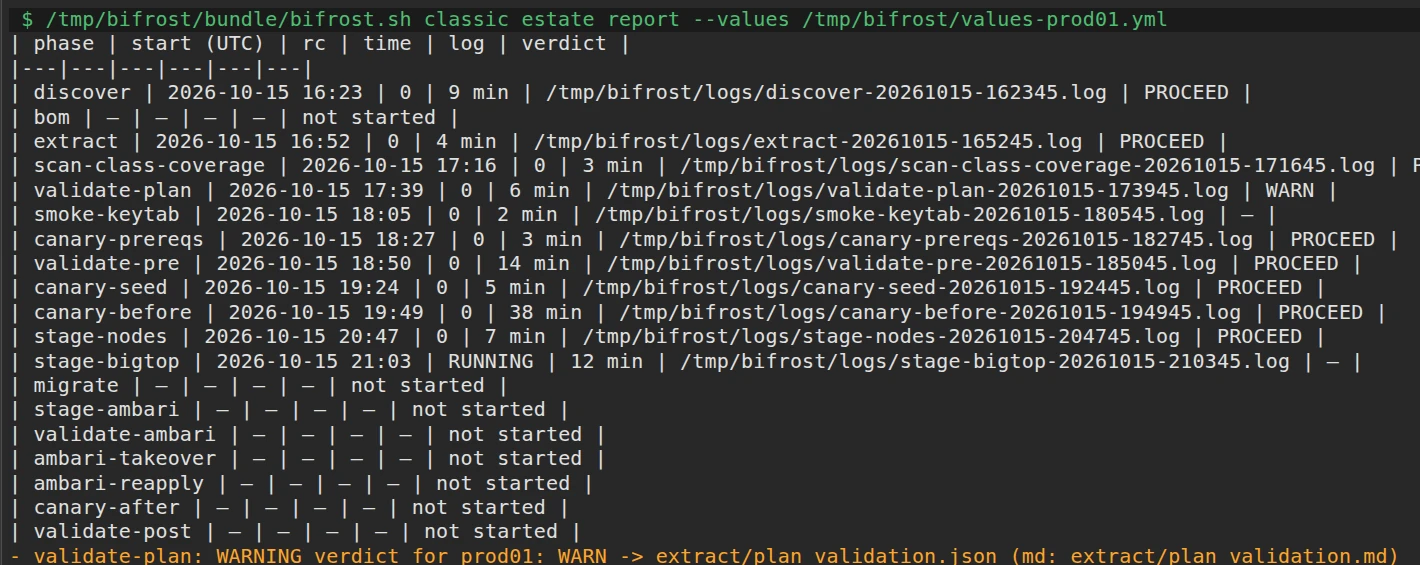 The migration report.
For support, :export <phase> writes a support package with the report, the end of the log, and the console messages. Host names, realms, principals, accounts, keytab paths, and addresses are replaced with stable aliases, and secret values are redacted; the alias map stays on the controller. b sends the newest support package to a target configured in the settings. The E export of a phase screen is not scrubbed and is meant for local use.
Keys and Commands
Presser ? at any time for the help, organized by screen.
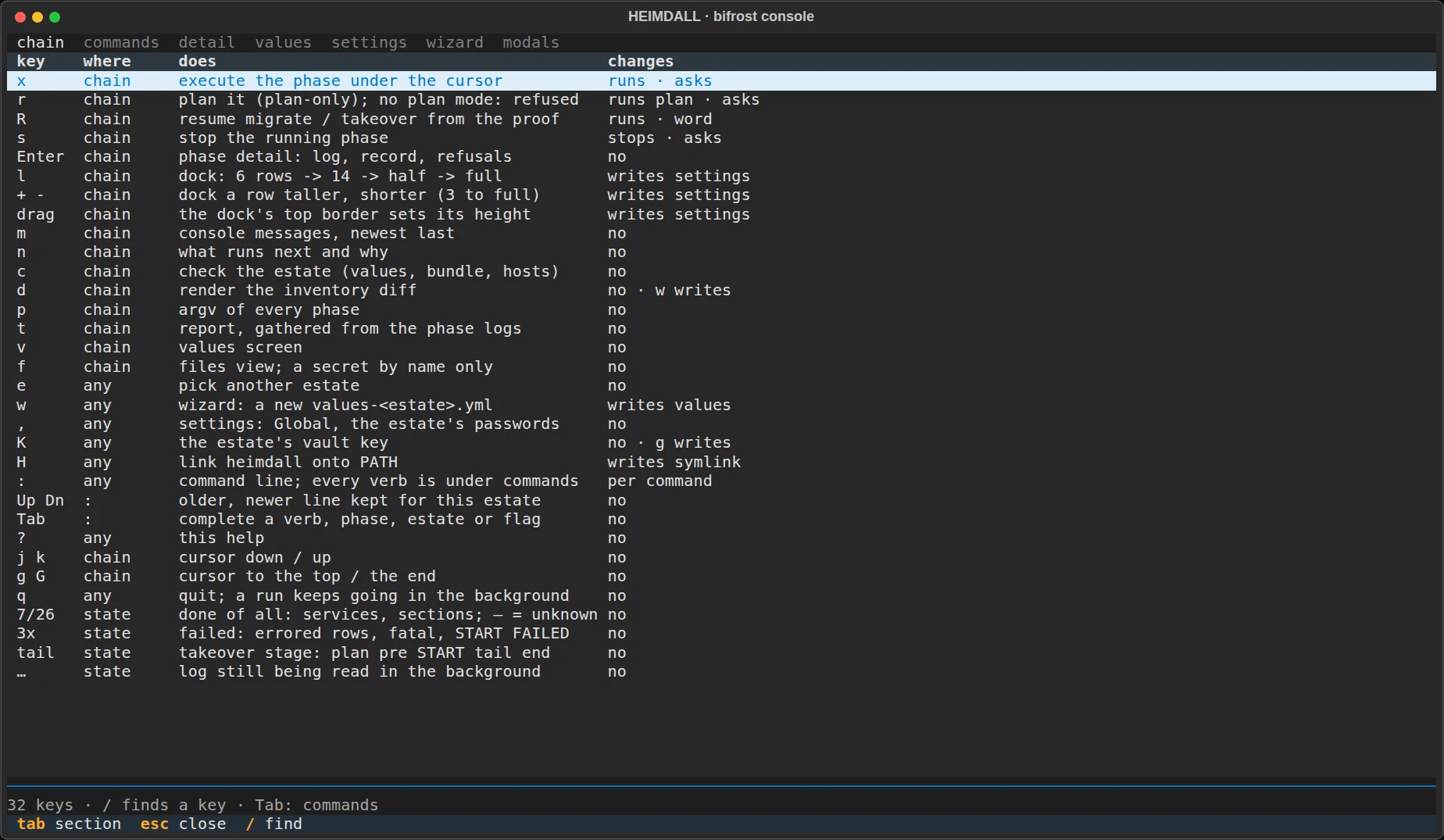 The built-in help.
| Key | Action |
|---|---|
x | Run the selected phase. |
r | Run the selected phase in plan-only mode. |
| Entrer | Open the details of the selected phase. |
s | Stop the selected phase. |
R | Resume a failed migrate, ambari-takeover, or canary capture. |
c | Check readiness. |
d | Show the inventory difference and write it. |
n | Show the next step. |
p | Show every phase as the command it runs. |
t | Open the migration report. |
v | Open the values. |
w | Create a new estate with the wizard. |
e | Switch to another estate. |
K | Manage the vault key. |
f | Show the files of the estate. |
m | Show every message of the session. |
, | Open the settings. |
l, +, - | Change the size of the log. |
z | Fold or unfold the finished phases. |
: | Enter a command. |
? | Open the help. |
q | Go back; on the chain, quit. A running phase keeps running. |
Commands entered after : complete with Tab, and Up and Down recall earlier commands:
| Command | Action |
|---|---|
run <phase> [--execute] | Run a phase. |
arrêter, status | Stop a phase or show its status. |
next, check, render [--write], plan [<phase>], report | The same as the single keys. |
record <phase> --rc N --why T --log P | Record a run performed outside the console. |
export <phase>, upload <phase> | Create or send a support package. |
estate <name>, settings, q | Switch estate, open the settings, quit. |
Settings
Presser , to open the settings. They are stored in $XDG_CONFIG_HOME/heimdall/settings.yml (by default ~/.config/heimdall/settings.yml).
| Setting | Values |
|---|---|
| theme | A dark theme by default; a monochrome theme is available. |
| editor | The built-in editor, the editor named by $VISUAL ou $EDITOR, or automatic. |
| pager | The built-in pager or an external one. |
| clock | Local time, UTC, or a named time zone. |
| log size | The height of the log below the chain. |
| hints | Key hints on screens. |
| splash | The start animation. |
The tab of each estate lists its stored passwords with the result and date of their last check; a password value is never shown. From there, a password can be changed, checked again, forgotten, or generated.
Where the Console Keeps Its Files
| What | Où |
|---|---|
| Run logs and run records | The log directory of the estate (controller.log_dir in the values). |
| Console messages, measured durations, support packages | The state directory of the estate. |
| Vault key and stored passwords | ~/.bifrost/estate/, with key copies in ~/vault-keep/. |
| Settings | $XDG_CONFIG_HOME/heimdall/settings.yml. |
| Command history and local exports | .heimdall/ in the console directory. |
Next Steps
- Follow the Classic migration for what each phase does.
- See every command the console runs in the CLI reference.
- Review the gates behind the verdicts in Validation and rollback.