Apache Spark Connect sur Ilum : Guide de configuration et de connexion
Qu’est-ce que Spark Connect ?
Spark Connect est une interface client-serveur moderne pour Apache Spark that enables remote execution of Spark workloads from lightweight clients such as Python, Java, Scala, R, and SQL-based tools. Introduced in Spark 3.4, Spark Connect decouples the Spark client from the Spark runtime, allowing developers to Créez des applications de données interactives, des notebooks et des tableaux de bord sans déployer l’intégralité du moteur Spark localement.
Tirer parti de Spark Connect Communication basée sur gRPC pour interagir avec un serveur Spark distant, offrant une flexibilité, une sécurité améliorée et une infrastructure simplifiée pour l’ingénierie des données, la science des données et les flux de travail analytiques.
C’est vrai very similar to Ilum’s approach to Spark microservices, où les composants Spark sont conteneurisés et exposés en tant que services dynamiques. Le design utilisé dans Déploiement du microservice PySpark sur Kubernetes : les deux permettant un accès évolutif, sans état et sécurisé à Spark sans configuration complète du cluster côté client.
Why use Spark Connect on Kubernetes?
Traditional Spark submission often requires complex local setups (Java, Hadoop binaries, exact Spark versions). Spark Connect eliminates this "dependency hell."
| Caractéristique | Traditional Spark Submission (étincelle-soumission) | Spark Connect |
|---|---|---|
| Architecture | Monolithic (Driver runs on client or cluster edge) | Decoupled (Client is separate from Server) |
| Client Requirements | Heavy (Requires Java, Spark binaries, Hadoop configs) | Lightweight (Only Python/Go/Scala library required) |
| Network Protocol | Custom RPC (Sensitive to version mismatch) | gRPC (Standard, version-agnostic, firewall-friendly) |
| Iteration Speed | Slow (Build & Deploy jars) | Fast (Interactive, REPL-style development) |
| Language Support | limited to JVM/Python | Polyglot (Python, Scala, Go, Rust, etc.) |
For a deeper dive into how Ilum leverages this for multi-tenancy, see our Architecture Documentation.
Dans Ilum, Spark Connect s’aligne naturellement sur notre architecture Spark basée sur des microservices. Vous pouvez déployer un serveur Spark Connect en tant que travail standard et y accéder via différentes méthodes de connexion, à l’aide du nom de l’espace, de l’adresse IP de l’espace ou d’un service exposé via Kubernetes.
Prepare Your Client Environment
Before connecting, you need a lightweight client library. Unlike traditional Spark, you do not need a local JVM or Hadoop installation.
Python (PySpark)
- Spark 4 (default)
- Spark 3
pip install Pyspark[connect]==4.0.1 grpcio-status
pip install Pyspark[connect]==3.5.8 grpcio-status
Scala (sbt)
For Scala applications, add the Spark Connect client dependency:
- Spark 4 (default)
- Spark 3
libraryDependencies += "org.apache.spark" %% "spark-connect-client-jvm" % "4.0.1"
libraryDependencies += "org.apache.spark" %% "spark-connect-client-jvm" % "3.5.8"
Spark SQL CLI
You can also use the generic Spark SQL CLI to connect remotely:
/path/to/spark/bin/spark-sql --remote "sc://<ilum-cluster-address>:15002"
Note: Always match your client library version (e.g.,
4.0.1; fallback3.5.8) with the Spark version running on your Ilum cluster.
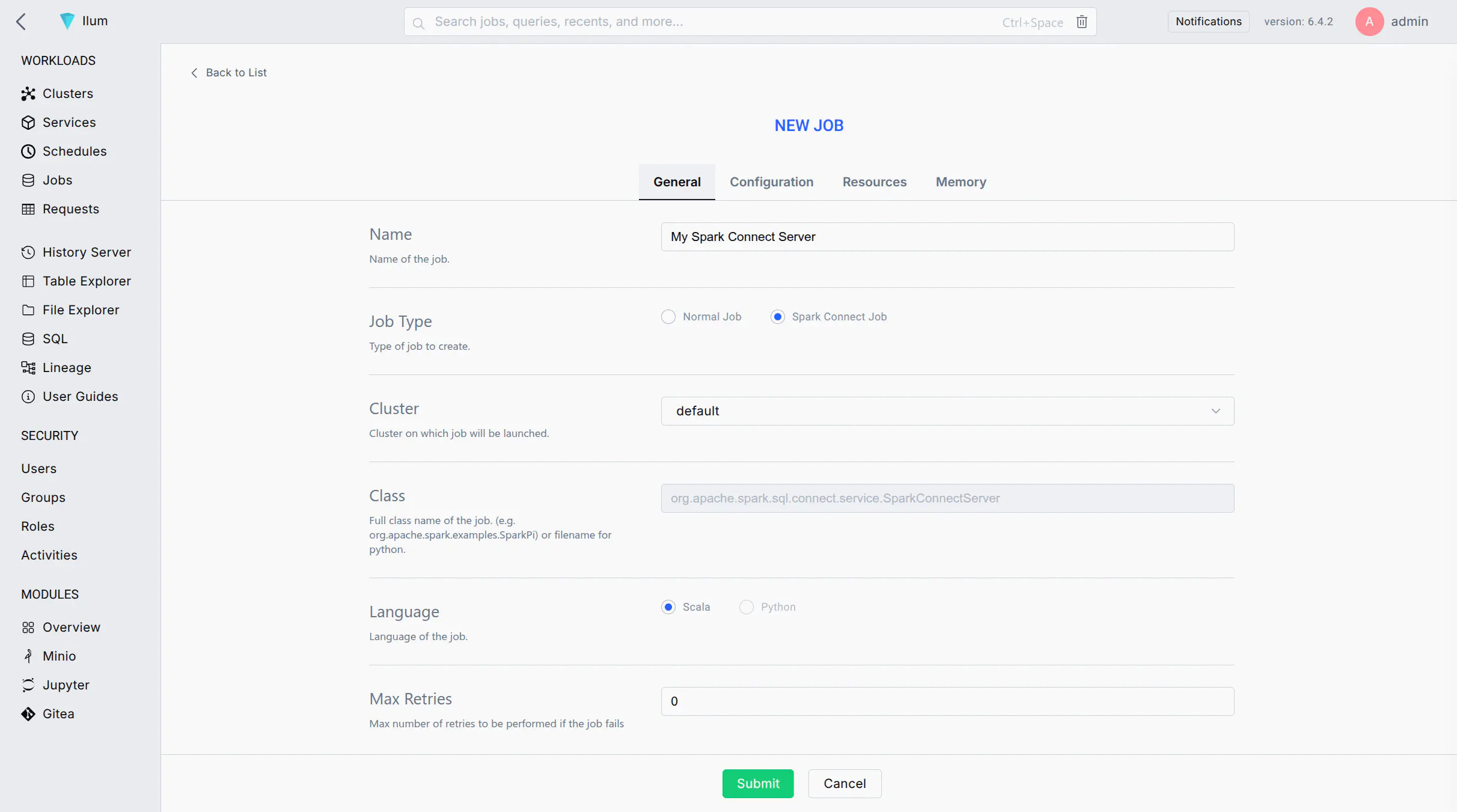
Création d’une instance Apache Spark Connect via l’interface utilisateur Ilum
Procédez comme suit pour lancer un serveur Spark Connect en tant que travail sur votre cluster Ilum à l’aide de l’interface utilisateur web :
-
Start a New Spark Job: Log in to the Ilum UI and navigate to the Jobs section. Click on Nouvel emploi pour créer une nouvelle tâche Spark.
-
Job Name: Enter a recognizable name for the job (e.g.,
Serveur Spark Connect) pour l’identifier ultérieurement dans l’interface utilisateur. -
Main Class: Set the job's main class to:
org.apache.spark.sql.connect.service.SparkConnectServerThis is the built-in Spark class that starts the Spark Connect server process, enabling remote connectivity to Spark clusters.
-
Spark Configuration: Go to the Configuration tab/section for the job. Add the following Spark property to ensure the Spark Connect server code is available:
- Spark 4 (default)
- Spark 3
Key: spark.jars.packages
Valeur: org.apache.spark:spark-connect_2.13:4.0.1
Key: spark.jars.packages
Valeur: org.apache.spark:spark-connect_2.12:3.5.8
This configuration instructs Spark to fetch the Spark Connect library from Maven when the job starts.
-
(Optional) Label the Pod: If you plan to expose this Spark Connect server via a Kubernetes Service, add a label to the Spark driver pod:
- Key:
spark.kubernetes.driver.label.type - Valeur:
SparkConnect
This will tag the Spark Connect server's pod with a label
type=SparkConnectfor easy service selection. - Key:
-
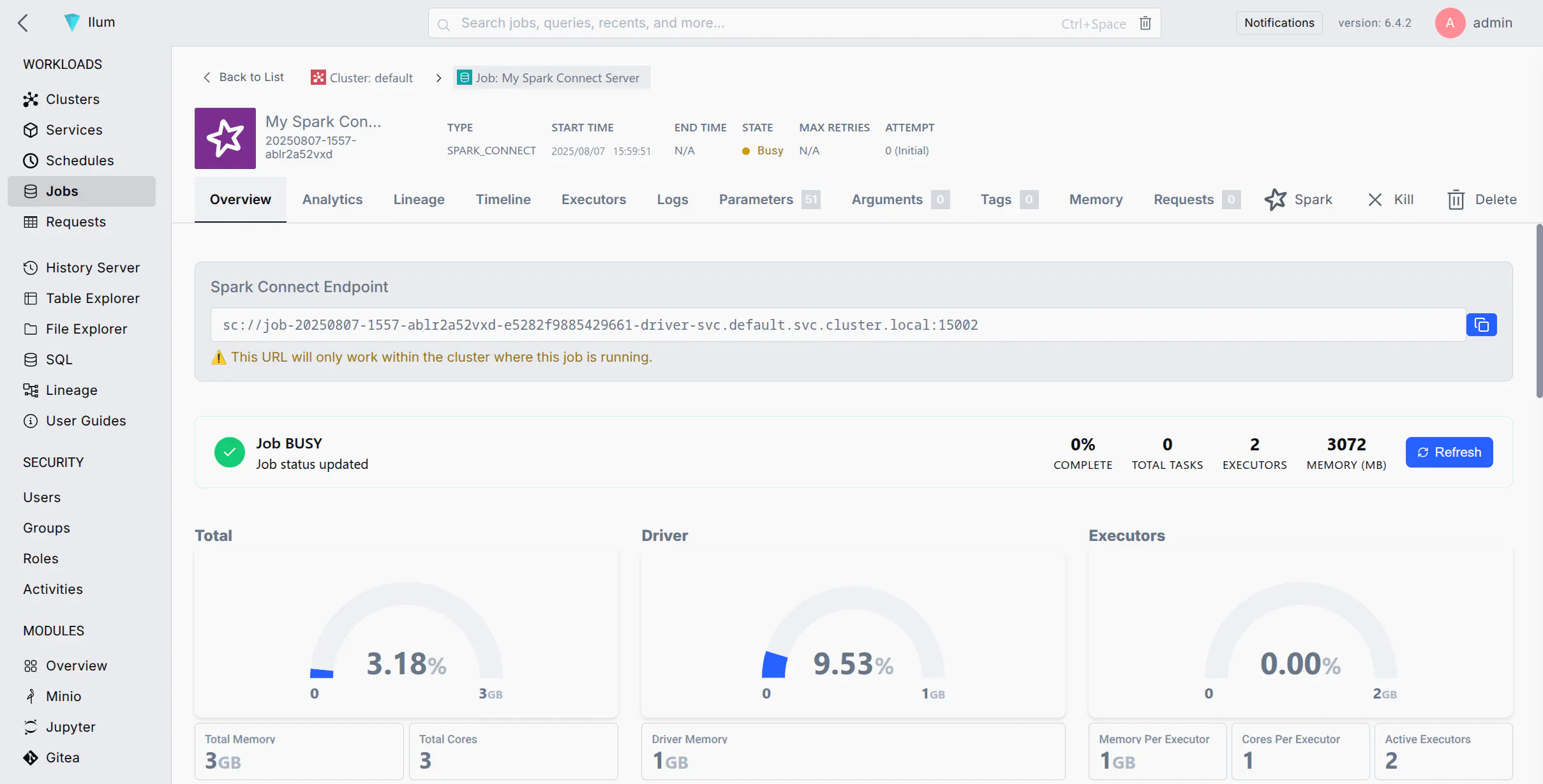
Submit the Job: Click Envoyer. Ilum déploiera le travail Spark sur le cluster. Après un court laps de temps, vous devriez voir le travail dans la liste des travaux en cours d’exécution.
-
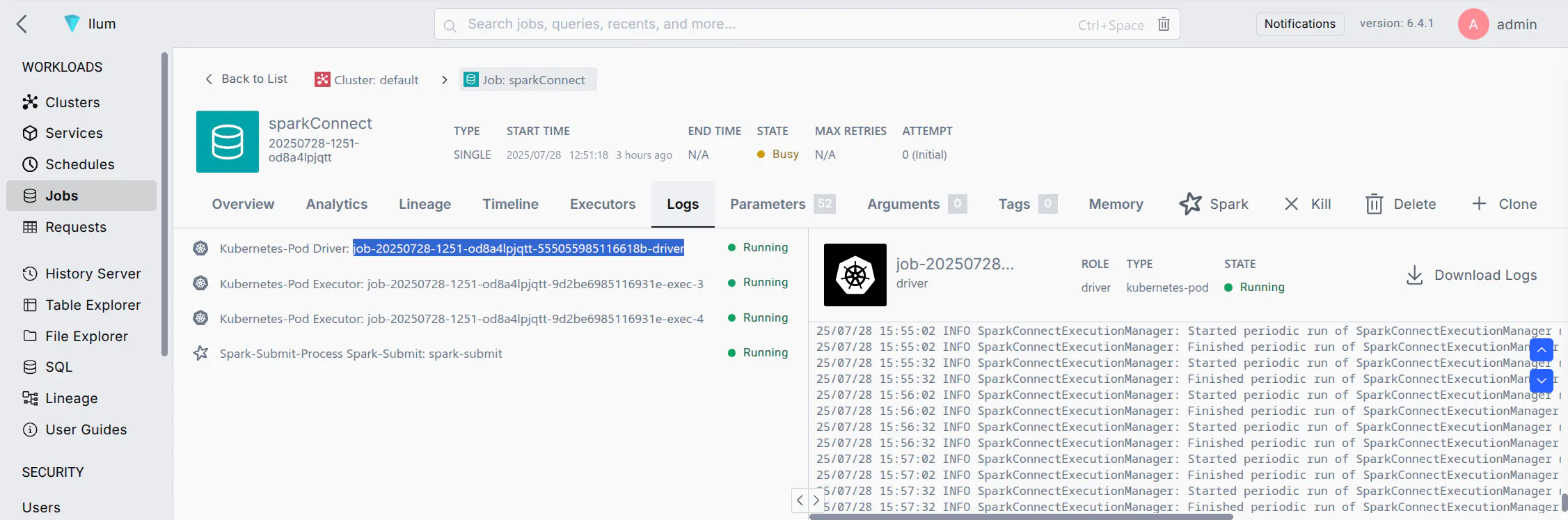
Verify the Server is Running: Wait for the job status to become "Running". You can check the job's logs for a message indicating Spark Connect has started (e.g., a log line mentioning port 15002). Once running, the Spark Connect server is listening for client connections on the default port 15002.
If your job fails immediately, ensure you added spark.jars.packages with the correct version.
Connexion au serveur Spark Connect
Une fois que le serveur Spark Connect est en cours d’exécution, vous pouvez vous y connecter à partir d’un client Spark (par exemple, PySpark, Spark shell, sparklyr, etc.) à l’aide de l’URL Spark Connect (Sc://...). Vous trouverez ci-dessous différentes méthodes de connexion en fonction de la configuration de votre réseau :
- Méthode 1 : Se connecter par nom de pod (DNS de cluster)
- Méthode 2 : Se connecter par l’adresse IP du pod
- Method 3: Port Forwarding with kubectl
- Méthode 4 : Exposer un service pour Spark Connect
If your environment allows DNS resolution of pod names (for example, your client is within the cluster or can resolve the cluster's internal DNS), you can connect using the pod's DNS name. Kubernetes assigns each pod a DNS name of the form <pod-name>. <namespace>.pod.cluster.local (Kubernetes DNS). This DNS name resolves to the pod's IP address inside the cluster.
Escalier:
- Find the Pod Name: In the Ilum UI, locate the Spark Connect job you started. Note the driver pod name (Ilum may show it in the job details or logs). It will be something like
job-xxxxxx-driver(Le format exact peut varier). - Construct the URL: Use the pod's fully qualified DNS name. For example, if the pod name is
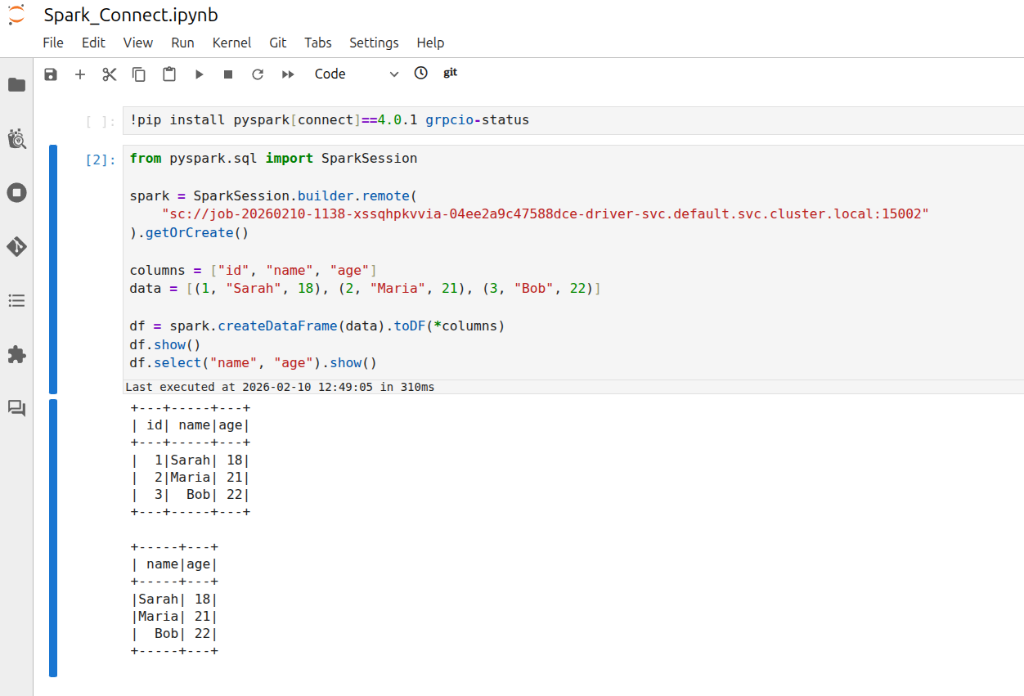
job-abc123-driverdans lefaire défautnamespace, l’adresse serait :sc://job-abc123-driver.default.pod.cluster.local:15002 - Connect via Spark Client: Use this URL in your SparkSession builder or Spark shell. For example, in PySpark you can do:
notebook.ipynb
De Pyspark.SQL importation SparkSession

étincelle = SparkSession.builder.lointain(
    « sc://job-abc123-driver.default.pod.cluster.local:15002 »
).getOrCreate()
This will create a Spark session that connects remotely to the Spark Connect server at the given DNS address. Ensure that your environment's DNS can resolve .pod.cluster.local adresses (généralement true uniquement si elles s’exécutent au sein du cluster ou via un VPN vers le réseau du cluster).
Note: This is crucial for managing your Apache Spark applications. If your client is running inside the same namespace in the cluster, you might not need the full domain. For instance, just sc://job-abc123-driver:15002 could work due to Kubernetes' DNS search path. However, using the full pod.cluster.local L’adresse avec l’espace de noms est l’approche la plus explicite et la plus fiable.
If DNS resolution is not available, you can use the pod's IP address directly in the Spark Connect URL. This requires that your client environment can reach the pod IP (e.g., if you are on the same network or have appropriate routing to the cluster's pod network).
Escalier:
- Get the Pod IP: Find the IP address of the Spark Connect pod. In Ilum UI, check the job details for an IP, or use the CLI:
kubectl get pod <pod-name> -o wideto see the pod's IP. - Construct the URL: Use the IP in place of the host. For example, if the pod IP is
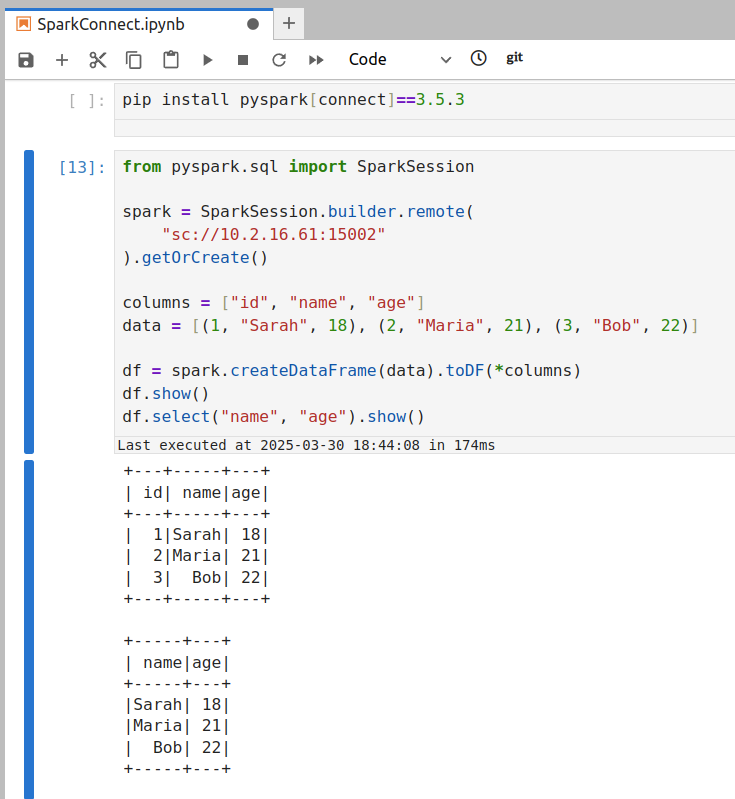
10.42.1.25, l’URL serait la suivante :sc://10.42.1.25:15002 - Connect via Spark Client: Use the IP-based URL in your Spark client. For example:
connect_by_ip.py
étincelle = SparkSession.builder.lointain("sc://10.42.1.25:15002").getOrCreate()
Cela tentera de se connecter au port 15002 sur cette adresse IP.
Assurez-vous que votre machine peut réellement atteindre l’adresse IP du serveur Spark.
- Si votre client est À l’intérieur du cluster (ou dans le même VPC/réseau), l’adresse IP du pod doit être accessible.
- Si votre client est En dehors du cluster (e.g., your local laptop), the pod IP is likely not directly routable. In that case, this method will time out or refuse connection. You'd then need to use Method 3 or 4 instead.
If you are connecting from outside the cluster (for example, from your local development environment) and cannot reach the pod IP or DNS directly, a convenient approach is to use Kubernetes port forwarding. Port forwarding opens a tunnel from your local machine to the remote pod's port.
Escalier:
- Run Port-Forward: Open a terminal on your machine that has access to the Kubernetes cluster (where
kubectlest configuré). Courir:RemplacerPort Forwardkubectl port-forward <pod-name> 15002:15002<pod-name>with the Spark Connect pod's name (e.g.,job-abc123-driver). This command will bind your local port 15002 to the pod's port 15002. You should see output likeTransfert depuis 127.0.0.1:15002 -> 15002. Maintenez ce processus en cours d’exécution pendant que vous avez besoin de la connexion au serveur Spark.
-
Connect to Localhost: With the port-forward in place, your local machine is now listening on port 15002. In your Spark client, connect to
localhost :15002à l’aide de l’URL Spark Connect :local_script.pyétincelle = SparkSession.builder.lointain("sc://localhost:15002").getOrCreate()Spark Connect utilise le port 15002 par défaut (Quickstart: Spark Connect — PySpark 3.5 documentation), de sorte qu’il permet à la connectivité à distance de déclencher des clusters.
sc://localhost:15002passera par le tunnel dans le cluster. Votre session Spark est maintenant connectée à distance à l’instance Spark du cluster. -
Use Spark as Usual: Once connected, you can use the
étincellesession as if it were local—all DataFrame operations will execute on the cluster.
Cette méthode est souvent la plus simple pour le développement. Lorsque vous avez terminé, vous pouvez arrêter la redirection de port en appuyant sur Ctrl+C dans le terminal exécutant le kubectl port-forward commander.
Pour une solution plus permanente ou pour permettre à plusieurs utilisateurs/clients de se connecter facilement, vous pouvez exposer le serveur Spark Connect via un service Kubernetes. Un service fournit un point de terminaison réseau stable (nom DNS et adresse IP) pour l’espace Spark Connect et peut éventuellement l’exposer au-delà du cluster (par exemple, via un LoadBalancer ou un NodePort).
Étapes pour exposer via le service :
-
Ensure Pod Label: If you haven't already labeled the Spark Connect pod (as suggested in step 5 of the setup above), do so now. You can add a label on the fly with kubectl:
kubectl label pod <pod-name> type=SparkConnect(Si le pod a déjà été étiqueté via la configuration Spark, cette étape n’est pas nécessaire.)
-
Create a Service: Define a Kubernetes Service YAML that targets this pod by its label.
spark-connect-service.yamlapiVersion: v1
gentil: Service
métadonnées:
nom: étincelle-connect-service
Namespace: ilum # use the namespace where your Spark Connect pod is running
Spec:
sélecteur:
type: SparkConnect # this label should match the pod's label
Ports:
- nom: SparkConnect
protocole: TCP
port: 15002 # service port (clients will use this)
targetPort: 15002 # target port on the pod
nodePort: 30002 # node port (external users will use this nodeip:30002)
type: NodePort # ClusterIP is only accessible within the cluster
# Pour un accès externe, vous pouvez utiliser le type : NodePort ou LoadBalancer ici.kubectl apply -f spark-connect-service.yamlCe service acheminera le trafic vers n’importe quel pod
Type : SparkConnectlabel on port 15002. You can verify withkubectl get svc spark-connect-service.
-
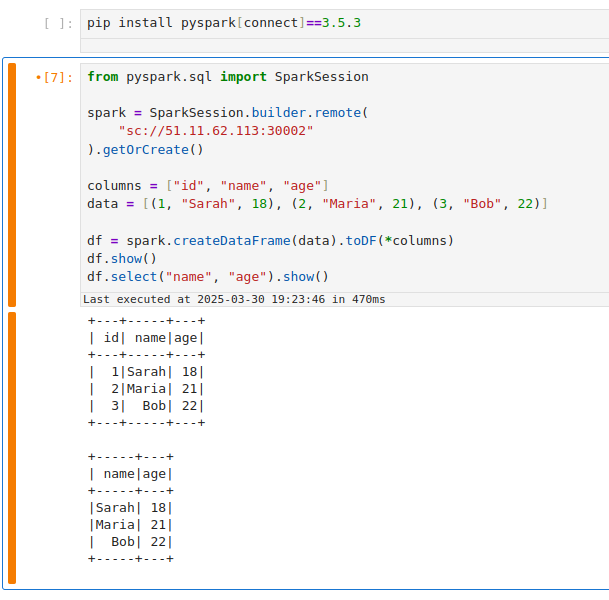
Inside Cluster or VPN: Use the service's DNS name or cluster IP. For example, within the cluster (or on a VPN that can resolve cluster DNS), the URL would be:
sc://spark-connect-service.default.svc.cluster.local:15002ousc://spark-connect-service:15002Tout le trafic vers cette adresse sera transféré vers l’espace Spark Connect. -
Outside Cluster (if exposed): If you set the Service type to NodePort or LoadBalancer, use the external address. For NodePort, that might be
sc://<node-ip> :30002. Pour LoadBalancer, il peut s’agir desc://<load-balancer-host> :15002en fonction de la façon dont votre fournisseur de cloud l’attribue. (Il s’agit de scénarios avancés ; souvent, la redirection de port est plus simple pour l’accès externe.)
Using a Service has the benefit of a stable name – you don't need to know the exact pod name or IP after it's set up. It also allows you to change the backing pod (e.g., restart the Spark Connect job) without changing how clients connect (as long as the new pod has the same label).
If your Service selector matches multiple Spark Connect pods, client requests can be routed inconsistently. A Kubernetes Service will load-balance connections among all matching pods. This means if you accidentally run two Spark Connect jobs with the label type=SparkConnect, a client might connect to either one (potentially different sessions each time). To avoid issues, ensure only one Spark Connect pod is behind a given Service, or use unique labels (and Service names) per instance. In cases where you need to scale Spark Connect horizontally, be aware that each client session is bound to a single server; multiple servers won't share session state.
Tâches de nettoyage
Une fois que vous avez terminé vos sessions Spark Connect, effectuez les étapes de nettoyage suivantes pour libérer des ressources et éviter les connexions orphelines :
-
Stop the Spark Connect Job: In the Ilum UI, navigate to the running Spark Connect job and click Arrêter ou Terminer. This will shut down the Spark Connect server process on the cluster. Confirm that the job's status changes to stopped/finished. (If you forget this step, the Spark Connect server will keep running and occupying cluster resources, impacting your spark application performance.)
-
Terminate Port-Forward Sessions: If you used
kubectl port-forward, go to the terminal where it's running and pressCtrl+Cpour mettre fin à la redirection de port. Cela ferme le tunnel et libère votre port local. Si vous avez exécuté port-forward en arrière-plan, assurez-vous de tuer ce processus. -
Delete Kubernetes Service (if created): If you exposed a Service for Spark Connect, remove it when it's no longer needed. You can delete it with:
kubectl delete service service de connexion d’étincelle -n faire défautRemplacer
service de connexion d’étincelleand namespace as appropriate. This ensures you don't leave an open network endpoint in the cluster. (If you set up a LoadBalancer, deleting the Service will also release the external IP/port. If you used a NodePort, it frees that port on the nodes for other uses.)
En nettoyant, vous vous assurez qu’aucun processus ou port parasite n’est laissé ouvert en raison de votre utilisation de Spark Connect, optimisant ainsi les ressources sur votre cluster Spark.
Troubleshooting Spark Connect Issues
Here are solutions to the most common errors when connecting to Spark on Kubernetes.
How to fix "Connection Refused" on port 15002?
If your client fails with ConnectionRefusedError ou UNAVAILABLE:
Cause: The client cannot reach the Spark Driver pod. This is usually a networking issue, not a Spark issue.
Solution:
- Check Job Status: Is the job actually
RUNNINGdans le Interface utilisateur Ilum? - Check Network Access:
- If you are outside the cluster (e.g., local laptop), you cannot use the Pod IP directly. You must use
kubectl port-forward(Method 3) or a NodePort/LoadBalancer Service (Method 4).
- If you are outside the cluster (e.g., local laptop), you cannot use the Pod IP directly. You must use
- Verify Port: Ensure you are connecting to
15002(Spark Connect), not4040(Spark UI). - Test Connection: Run
nc -vz localhost 15002(if using port-forward).
How to resolve "Name or service not known" (DNS Error)?
Cause: Your local machine doesn't know how to resolve Kubernetes internal DNS names like job-xyz.default.pod.cluster.local.
Solution:
- Option A:Utiliser
kubectl port-forwardand connect tosc://localhost:15002. - Option B: Connect using the Pod IP directly (only works if you are on the same VPN/VPC).
- Option C: Configure your local
/etc/hoststo point the DNS name to 127.0.0.1 (combined with port forwarding).
How to fix "Pod not found" during port-forwarding?
Cause: Spark Driver pods are ephemeral. If you restart the job, the pod name changes (e.g., from job-abc-driver À job-xyz-driver).
Solution:
- Always check the current driver pod name in the Ilum UI or via
kubectl get pods -l spark-role=driver. - Utilisez un Service (Method 4) to get a stable hostname that doesn't change between restarts.
Error: "Client version mismatch" or "Unsupported Protocol"
Cause: You are trying to connect a Spark 3.4 client to a Spark 3.5 server (or vice versa).
Solution: Check your client version:
pip show pyspark
It must match the Ilum cluster version (e.g., both must be 3.5.x).
Error: "ModuleNotFoundError: No module named 'grpc'"
Cause: The grpcio-status library is missing. It is a required optional dependency for Spark Connect.
Solution:
pip install grpcio-status
En suivant ce guide, vous devriez être en mesure de configurer un serveur Spark Connect sur Ilum et de vous y connecter par diverses méthodes. L’interface utilisateur Ilum facilite le déploiement de l’instance Spark Connect et, grâce aux techniques ci-dessus, vous pouvez y accéder, que vous soyez à l’intérieur du cluster Kubernetes ou que vous travailliez à distance. Bonne connexion !